

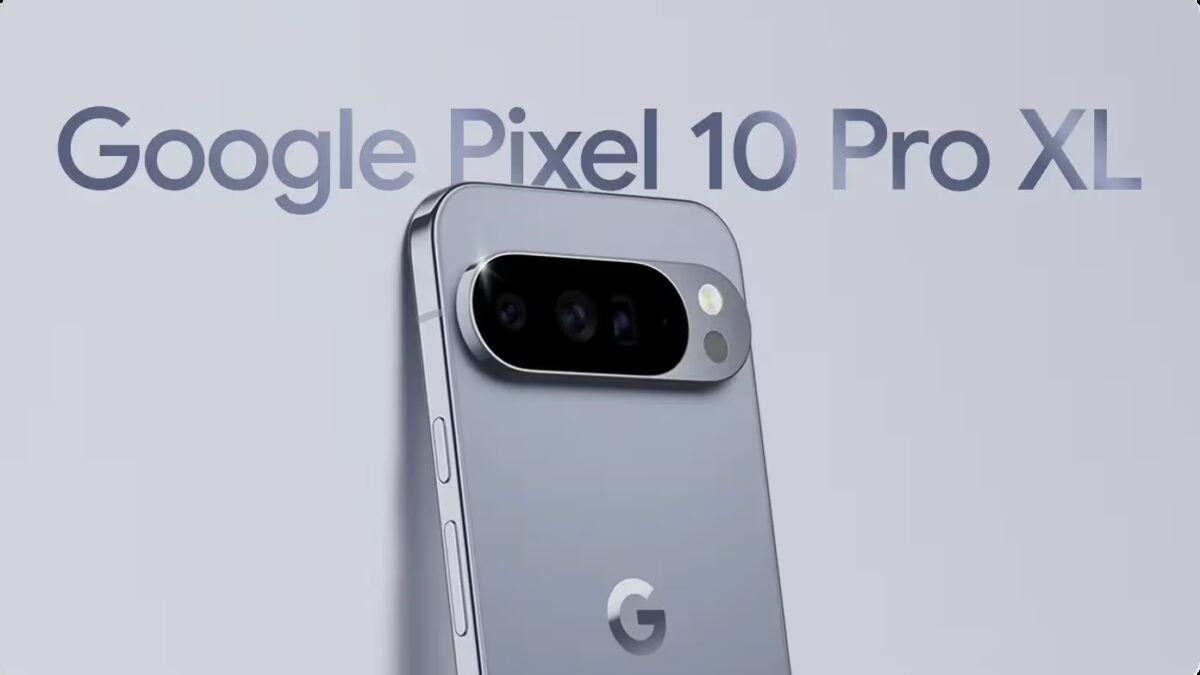
Google Pixel smartphones pack some of the most AI-heavy experiences you’ll find in any consumer phone today. With every new Pixel generation, artificial intelligence plays an increasingly central role in how the device operates. While AI features exist across modern smartphones, Pixel integrates them deeply into the system and user interface.
If you’re not comfortable with this and want to dial back AI’s presence on your Pixel, it takes some effort. You can’t completely turn off AI, but many individual features can be disabled one by one. This guide is based on the Pixel 10 Pro XL but applies mostly to the Pixel 8 and Pixel 9 series as well.
Heads-up: turning off certain AI functions may impact other device features. Keep track of what you disable so you can quickly restore any settings if something stops working properly.
Apps you can uninstall or disable on Google Pixel
Journal. This new AI-powered diary app introduced on Pixel 10 can be safely removed like any standard app.
Screenshots. Starting with Pixel 9, Google introduced a dedicated screenshot app that analyzes images and makes them searchable. You can either uninstall it completely or disable the ”Search screenshots with device AI” option in its settings. If you turn off this feature, the system will offer to delete all AI-generated summaries and metadata linked to your screenshots.
Pixel Studio, AI Core, Private Compute Services, Android System Intelligence. These are core system apps that can be disabled via the app settings menu.
How to reduce AI features in Google Photos
AI plays a major role in Google Photos, especially with the Gemini toolset. You can limit or fully disable Gemini features here:
- Tap your profile icon
- Go to ”Photos settings”
- Open ”Settings” → ”Gemini features in Photos”
You can turn off Gemini entirely in the app, or disable specific functions such as ”Ask Photos,” Gemini-powered Memories, and automatic captions.
How to remove the Gemini button from Messages
- Open the Messages app
- Tap your profile icon
- Go to Message settings
- Select ”Gemini in Messages”
- Turn off ”Show Gemini button”
How to disable AI features in the Phone app
The Phone app on Pixel includes several AI-powered tools you can easily turn off:
- Open the Phone app
- Tap the menu button in the top left corner
- Go to Settings
- Under ”Call assistance,” disable the features you don’t want
How to turn off Circle to Search on Pixel
Circle to Search lets you search by circling text on the screen. If you don’t use it:
- Open Settings
- Go to System
- Toggle off ”Circle to Search”
How to remove the AI button from Google Search bar
The Pixel’s main screen Google Search bar now features an AI mode button. To get rid of it and restore a cleaner look:
- Open the Google app
- Tap your profile icon
- Go to Settings
- Select ”Customize search widget”
- Choose ”None” or assign a different shortcut
How to switch back to Google Assistant from Gemini AI
Google’s Gemini AI has replaced Google Assistant as the default voice assistant on Pixel. To revert:
- Open Gemini
- Tap your profile icon
- Select ”Switch to Google Assistant”
- Confirm and tap ”Switch”
Keep in mind Google plans to phase out Google Assistant in favor of Gemini, so this option may disappear in future software updates.
How to uninstall Gemini AI on Pixel
After switching back to Google Assistant, you can remove the Gemini app. Before uninstalling, it’s recommended to visit the ”Gemini app activity” section and delete any data you don’t want stored by Google.
FAQ about disabling AI features on Google Pixel phones
- Is it possible to completely disable AI on Pixel?
No. AI is deeply embedded into the OS. While you can remove most visible AI features like the voice assistant, buttons, and photo or screenshot analysis, turning off AI entirely at the system level isn’t possible. - Will disabling AI features affect phone performance?
Usually not. Turning off individual apps or functions rarely impacts device speed. However, some system components like Android System Intelligence support other phone features, so keep an eye on device behavior after disabling them. - Can system updates re-enable disabled AI functions?
Yes. Some features may return after major OS updates, especially those part of Google’s system apps. After updates, it’s wise to recheck your AI settings and disable features again if needed. - Should I uninstall Gemini completely or just ignore it?
If you’ve switched back to Google Assistant and don’t plan to use Gemini, uninstalling it makes sense. Just remember to clear Gemini’s data first. If you might use Gemini occasionally, simply leaving the app installed but inactive is okay.
Google Pixel’s thorough integration of AI features sets it apart but can be overwhelming or intrusive for some users. With these steps, you can dial back AI involvement while retaining most phone functionality. As Google shifts fully toward Gemini AI, expect this balance to become more challenging as future updates might lock in these features more firmly.