

Your browser’s cache is like a cluttered storage closet filled with leftover bits from websites – images, stylesheets, scripts, fonts, and more. It quietly saves copies of these files on your device so pages load faster on your next visit by reusing them instead of downloading fresh copies every time.
This caching speeds up page loads, reduces data usage, and extends battery life, making browsing smoother overall. But just like any storage space, if you don’t clean it out regularly, the cache can become bloated and cause headaches.
An overloaded cache can slow down your browser, serve outdated web pages, and even cause some sites to malfunction. Fortunately, clearing your browser’s cache is quick and often resolves these annoying issues in minutes.
Quick guide: how to clear your browser cache
If you’re short on time, here’s the gist: open your browser settings, navigate to ”Privacy & Security,” select ”Clear browsing data,” choose what you want to delete, then hit ”Clear data.” Menu names and exact steps might differ slightly between browsers like Chrome, Edge, or Safari, but this is the universal approach.
Keyboard shortcuts to open cache clearing options

Most Chromium-based browsers, including Yandex Browser-a popular Russian alternative-let you jump straight to clearing your cache using these shortcuts:
- macOS: Command + Shift + Delete (⌘⇧Delete)
- Windows: Control + Shift + Delete (⌃⇧Delete)
These shortcuts open the ”Clear browsing data” page directly in browsers like Chrome, Edge, and Yandex.
Why clear your browser cache?
Clearing your cache forces your browser to fetch the latest versions of website files instead of loading outdated data. This can fix issues where pages show errors like 404 or 502, which sometimes happen because of corrupt cached files.
It’s also a way to remove stored personal information such as login credentials and other sensitive data you might not want saved on your device. Plus, it frees up storage and may boost your browser’s speed if you’ve been experiencing slowdowns.
What clearing the cache does and doesn’t do
Before you start, here’s what you gain and what stays untouched when you clear your cache:
- Frees up disk space on your computer
- Fixes broken or improperly loading websites
- Resolves error pages like 404 or 502 related to cached data
- Updates stale website content
Clearing cache does not:
- Remove your installed browser extensions
- Delete saved passwords or login info (unless you select those options explicitly)
- Erase your browsing history (unless chosen)
How to clear cache in Google Chrome
Google Chrome is the world’s most popular browser. Clearing its cache is straightforward-and these steps also apply to other Chromium-based browsers like Brave or Opera.
Open Chrome on your computer, click the three-dot menu in the upper-right corner, then select ”Settings.”
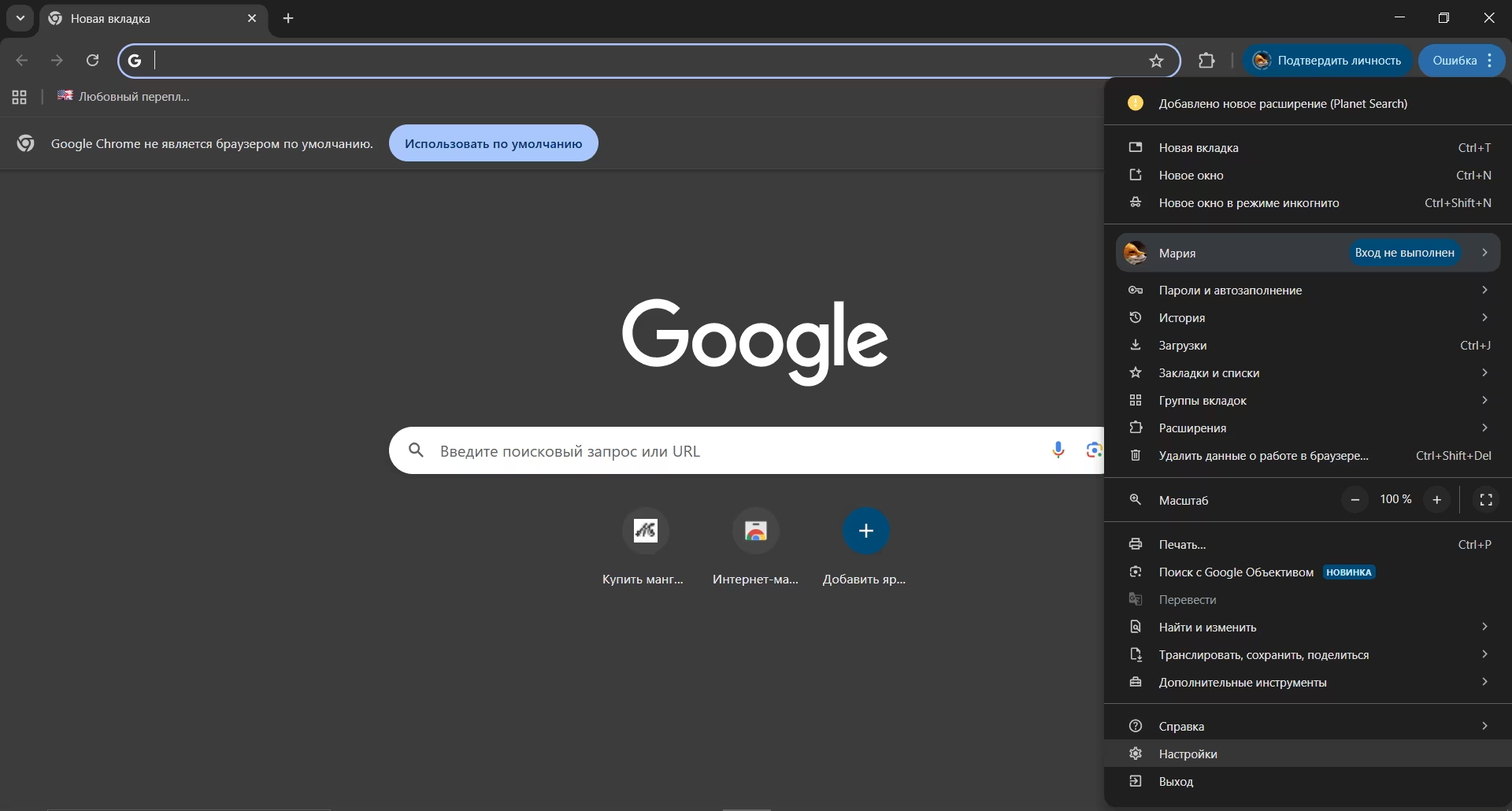
Go to ”Privacy and Security” on the sidebar, then click ”Clear browsing data.”

Choose the time range for the data you want to clear. Note that by default, browsing history, cookies, and other site data are selected along with cached images and files. Uncheck anything you want to keep.

Click ”Clear data” to empty Chrome’s cache.
How to clear cache in Safari on Mac
On a Mac, open Safari’s preferences from the Safari menu or press Command + Comma (⌘,).
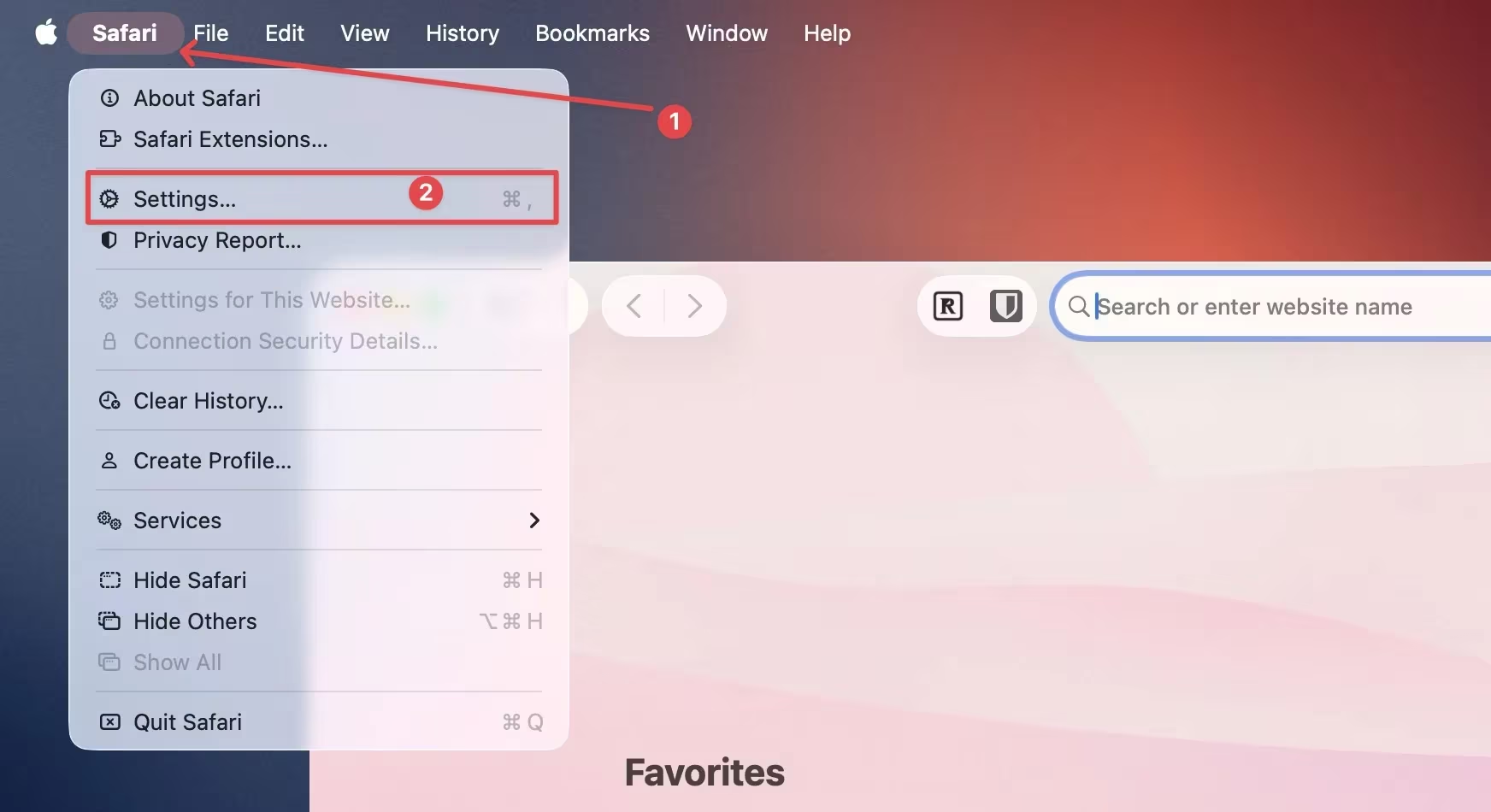
Go to the ”Advanced” tab and enable ”Show Develop menu in menu bar.”
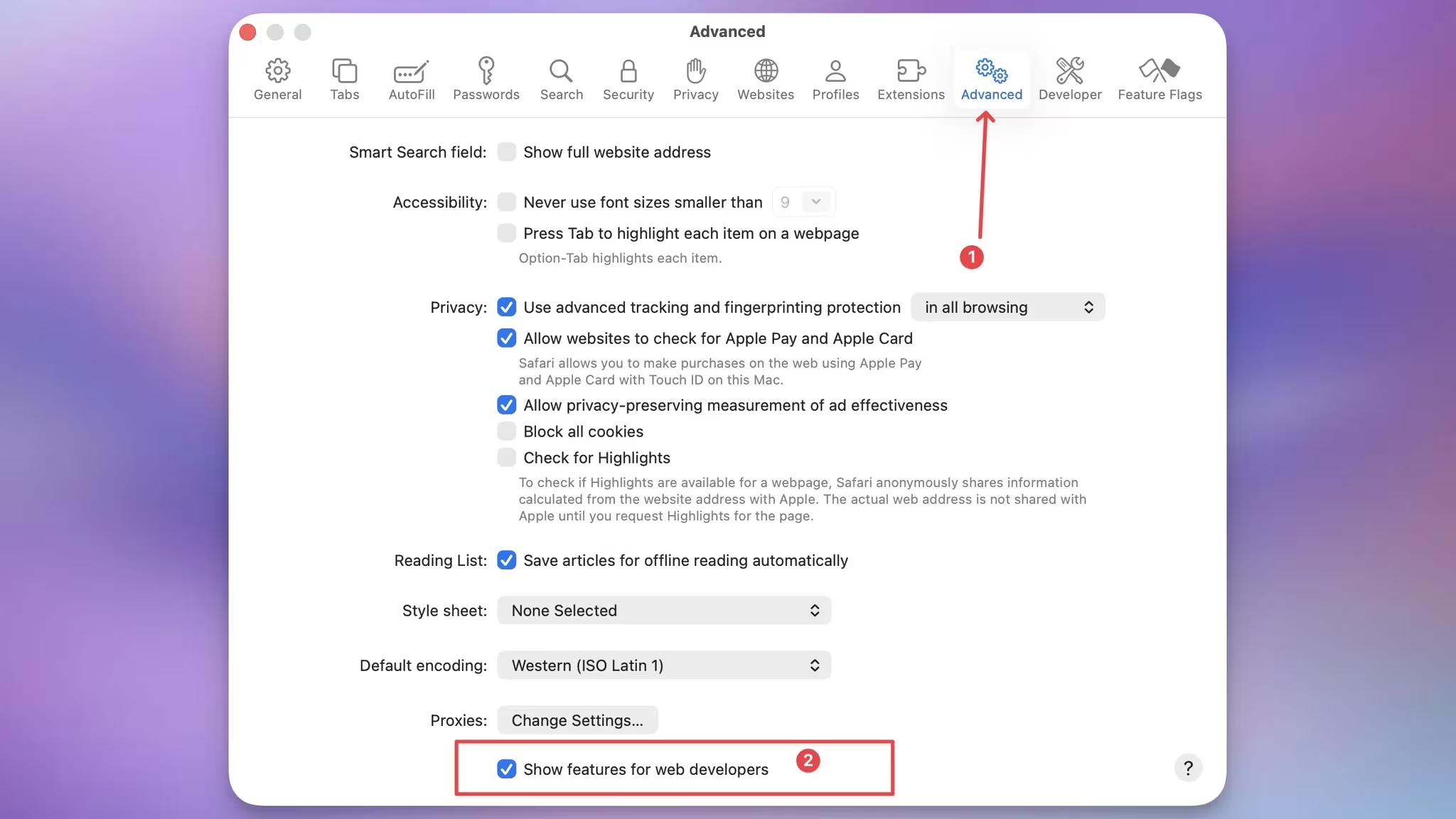
A new ”Develop” menu appears in the top bar. Open it and select ”Empty Caches” to clear Safari’s cache.
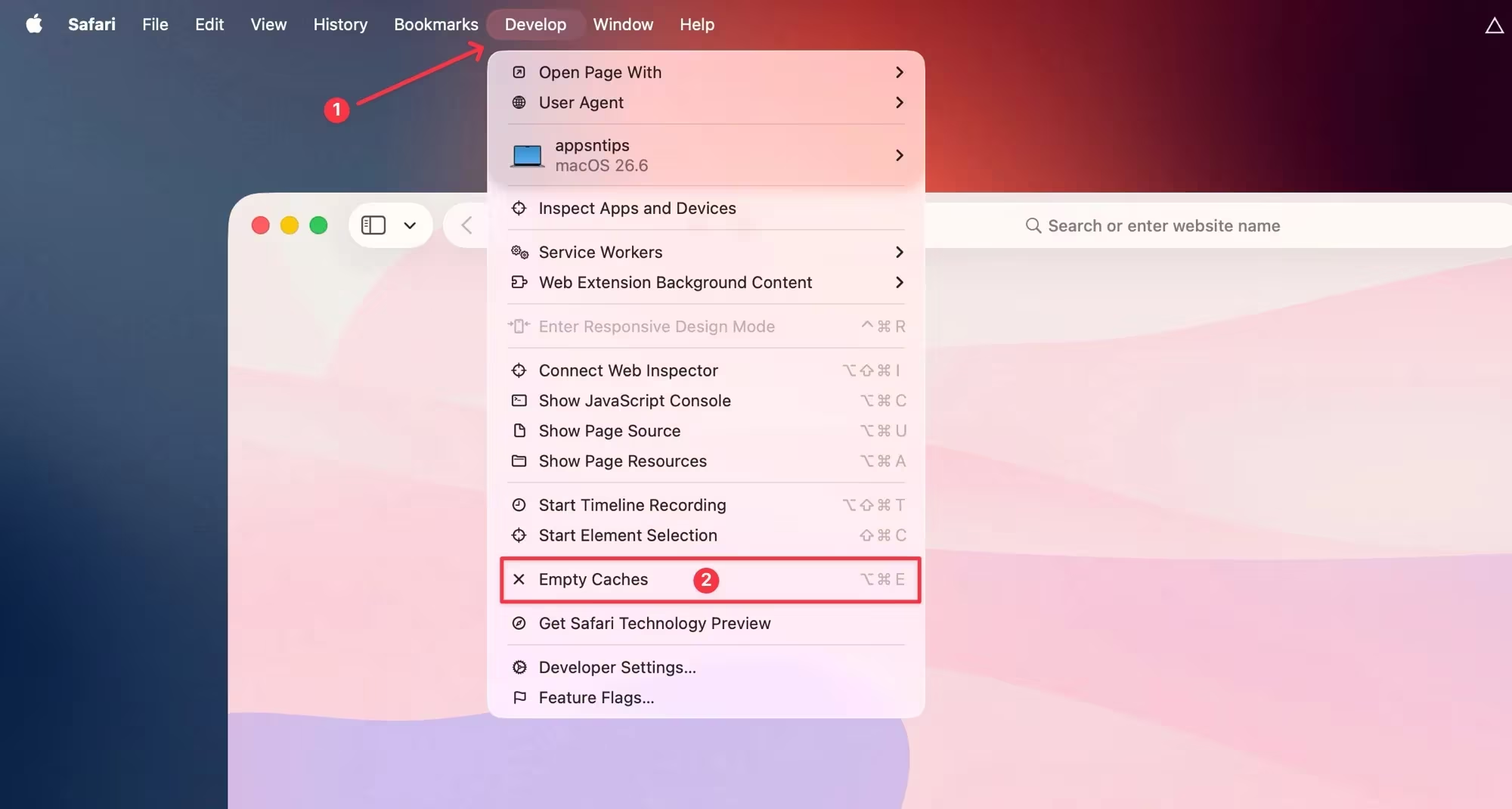
You can also press Command + Option + E (⌘⌥E) to clear the cache in Safari quickly.
How to clear cache in Microsoft Edge
Microsoft Edge is another Chromium-based browser, so the familiar shortcut (Control/Command + Shift + Delete) works here too. If that’s tricky to remember, follow these steps:
Click the three-dot menu at the top-right and choose ”Settings.”
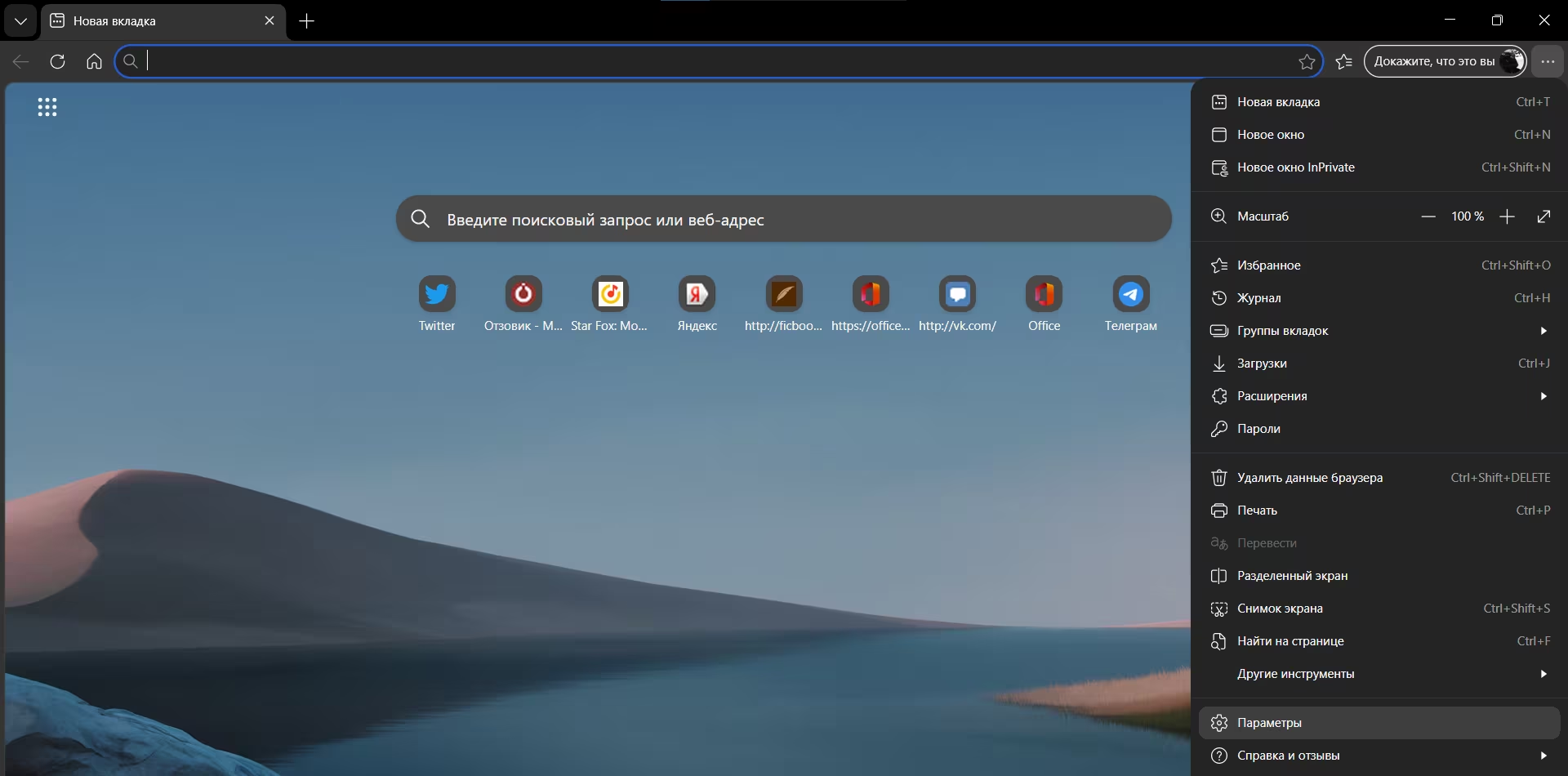
Navigate to ”Privacy, Search, and Services” in the sidebar, then click ”Choose what to clear” under Clear browsing data.

Select ”Cached images and files,” set the time range, then click ”Clear now” to wipe Edge’s cache.

Cache vs cookies: what’s the difference?
A common point of confusion is between cache and cookies. Both store website data locally but serve different purposes.
Cookies are small pieces of info that store things like login credentials and site preferences. Cache holds copies of website elements such as HTML files, images, and stylesheets to speed up page loading.
What happens after you clear the cache?
Clearing your cache is one of the easiest ways to boost your computer’s overall performance. If your browser has been sluggish, this step often gives it a noticeable speed boost.
After clearing, you may find regularly visited sites load faster and that any layout glitches disappear. Be aware, though: some sites might require you to log in again because cached login data was wiped. Before clearing, make sure to save any important usernames and passwords.
While clearing cache is a routine task, as browsers become more sophisticated, future updates may automate or simplify this process further. It’s worth watching how browser makers like Google, Apple, and Microsoft will evolve cache management, perhaps offering smarter selective clear options or background maintenance without user intervention.