

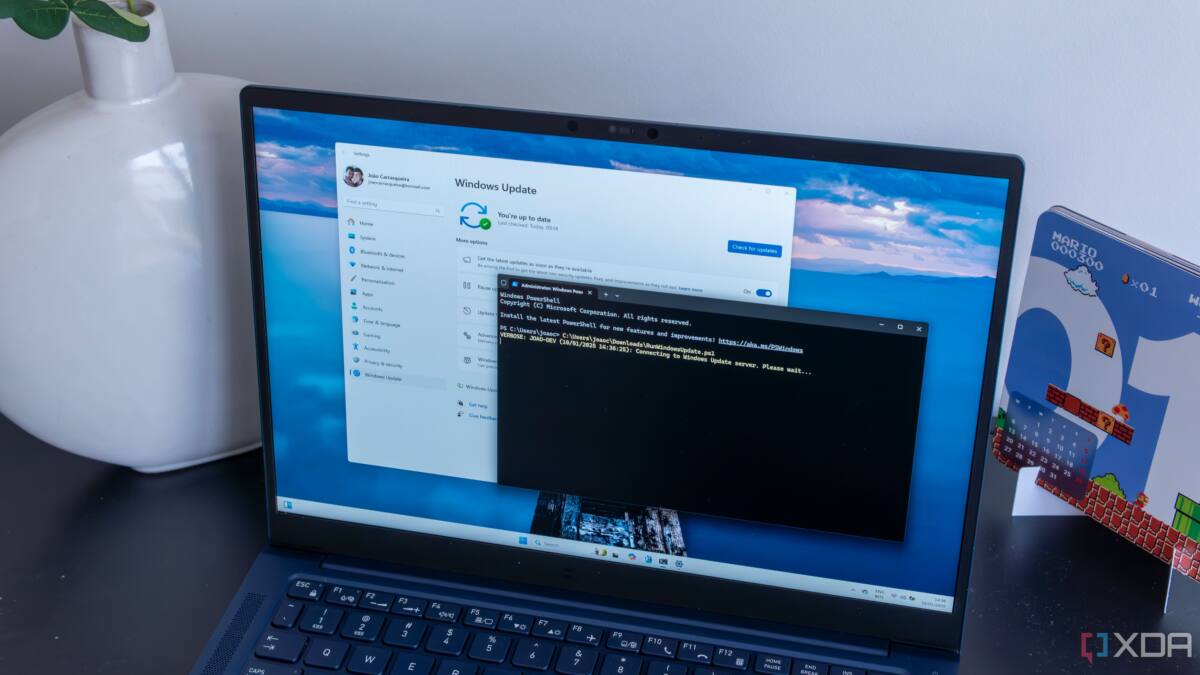
Microsoft has finally folded Sysmon into Windows 11, giving ordinary users and admins a far better way to see what a PC is actually doing behind the scenes. That matters because Windows has long been good at telling you that something happened, and much worse at telling you what a process did after it started.
The new setup turns a long-standing Sysinternals favorite into a built-in feature, which should remove the biggest reason many people never bothered with it: another tool to install, update, and babysit. In other words, Microsoft has quietly closed a logging gap that power users have been working around for years.
What Sysmon logs on Windows 11
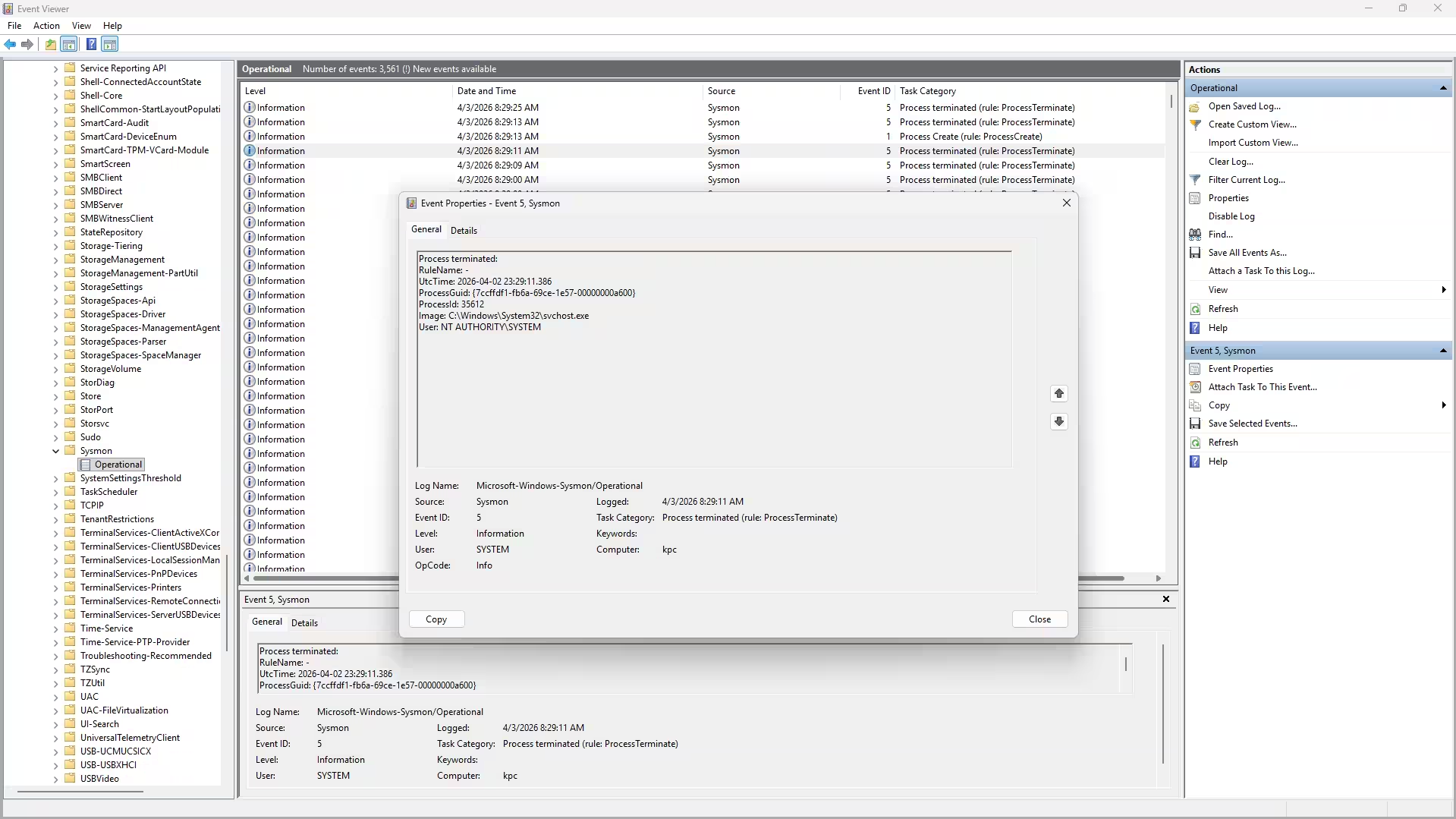
Sysmon is not a shiny dashboard. It is a background logger that records the kind of low-level activity Event Viewer usually hides in generic, underwhelming entries. That includes process creation with full command context, network connections tied to specific apps, file changes in sensitive places, and one process trying to poke at another.
That makes it useful for exactly the moments Windows is least helpful: when a program behaves strangely, something installs itself without asking, or a connection looks suspicious. The difference is that Sysmon gives you a timestamped trail instead of a shrug.
Once enabled, the logs live in Event Viewer under Microsoft -> Windows -> Sysmon -> Operational, and you can also query them from PowerShell with Get-WinEvent. That is very Microsoft: no flashy UI, just a pile of evidence if you know where to look.
How to turn on Sysmon in Windows 11
According to Microsoft’s rollout, Sysmon arrived in the March 2026 update for Windows Home, Pro, and Enterprise. Enabling it is a straightforward affair: go to Settings > System > Optional Features > More Windows Features, tick the Sysmon box, and click OK. After that, open an elevated PowerShell window and run sysmon -i to finish setup.
If you were already using the standalone Sysinternals version, uninstall it first. Running both side by side will cause conflicts, which is exactly the sort of avoidable mess built-in features are supposed to eliminate.
Microsoft also says Sysmon can use XML configuration files, including community templates such as SwiftOnSecurity’s widely used config or a fork of it. That is the smart way to start, because default or overly broad logging can drown you in data fast.
- Process creation with full command-line context
- Network connections linked to specific programs
- File creation and modification in sensitive locations
- Process-to-process access attempts
Microsoft’s AI teaser is the part to watch
The company also dangled an AI-powered threat detection feature that would use Sysmon’s logs to flag suspicious behavior locally, without sending data to the cloud. That sounds tidy on paper, but Microsoft has not exactly earned blind trust on AI polish, and security tools are the last place you want fuzzy decision-making without clear controls.
Sysmon has always been attractive because it does one thing and does it predictably. If Microsoft adds an AI layer, users will need documentation, auditability, and an off switch, or the tool risks becoming noisier rather than smarter.
The bigger story is that Microsoft finally shipped a feature power users have wanted in Windows for ages. Sysmon was released in 2014, and now it is built into Windows 11 instead of sitting off to the side like a specialist tool most people meant to install someday.
The likely next step is obvious: more users will turn it on, and more admins will use it as a first stop for debugging and incident triage. The open question is whether Microsoft keeps the experience practical or buries it under the kind of AI garnish that looks impressive in a demo and irritating in real life.