

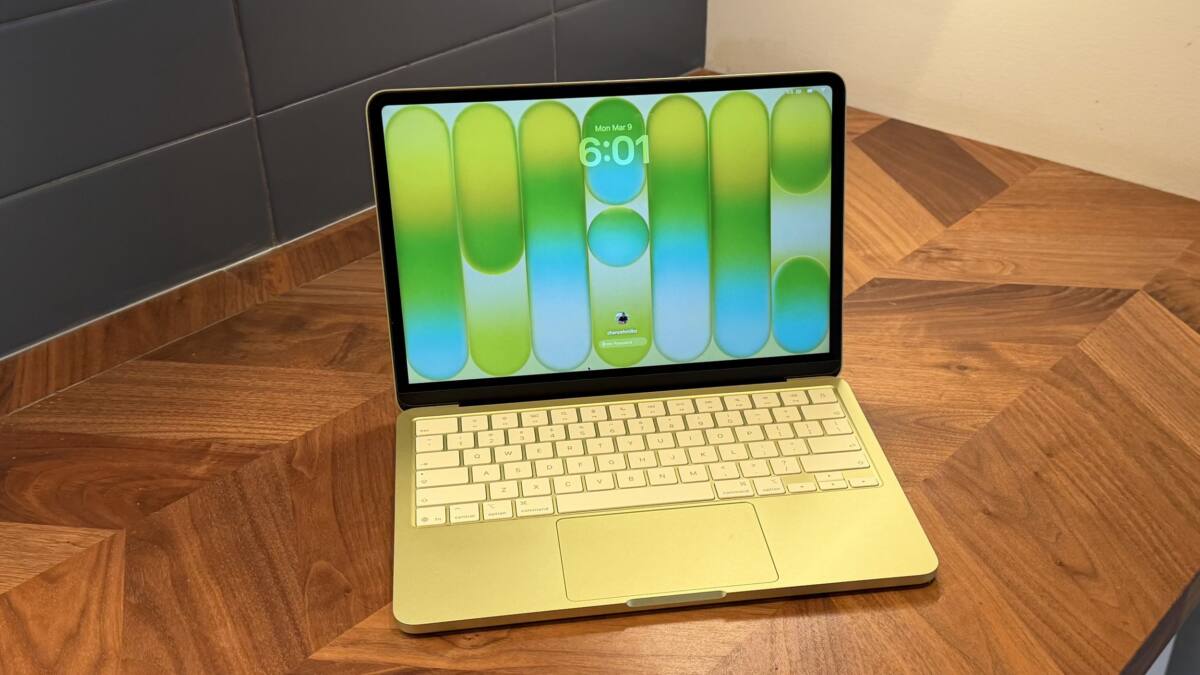
Apple’s macOS 26.4 update introduces a new ”Slow Charger” alert to help MacBook users identify when their charger doesn’t meet the minimum recommended wattage for their Mac model. This feature appears in the Battery section of System Settings, making it easier to spot when your charger might be slowing down your MacBook’s charging performance.
The ”Slow Charger” warning shows up both in the battery status menu and above the battery level graph, providing clear visibility. Apple’s support documentation states that using a charger with at least the minimum required wattage-listed for each Mac model on Apple’s website-is essential for optimal charging speeds. If your Mac signals that the charger is slow, it’s a good idea to upgrade to a power adapter that delivers sufficient power.
Recommended power adapters for various MacBook models include:
- MacBook Neo: 20W USB-C Power Adapter
- MacBook Air (13-inch): Apple 30W USB-C Power Adapter, 35W Dual USB-C Port Adapter, 67W USB-C Adapter, or 70W USB-C to MagSafe 3 Cable
- 14-inch MacBook Pro: 67W, 70W, or 96W USB-C Power Adapter with USB-C to MagSafe 3 Cable
- 16-inch MacBook Pro: 140W USB-C Power Adapter with USB-C to MagSafe 3 Cable
Though Apple’s power adapters are priced at a premium, third-party options like Anker’s 100W USB-C adapter offer fast charging at more affordable prices. This macOS feature provides a simple way for users to confirm whether their charger meets their MacBook’s power requirements, which is especially helpful for those using older or lower-wattage adapters designed for other devices.
The timing of this feature aligns well with the increasing tendency of users to charge their MacBooks on the go with multi-device chargers that prioritize convenience but may lack sufficient wattage. macOS 26.4 helps diagnose slow charging issues quickly, reducing user frustration.
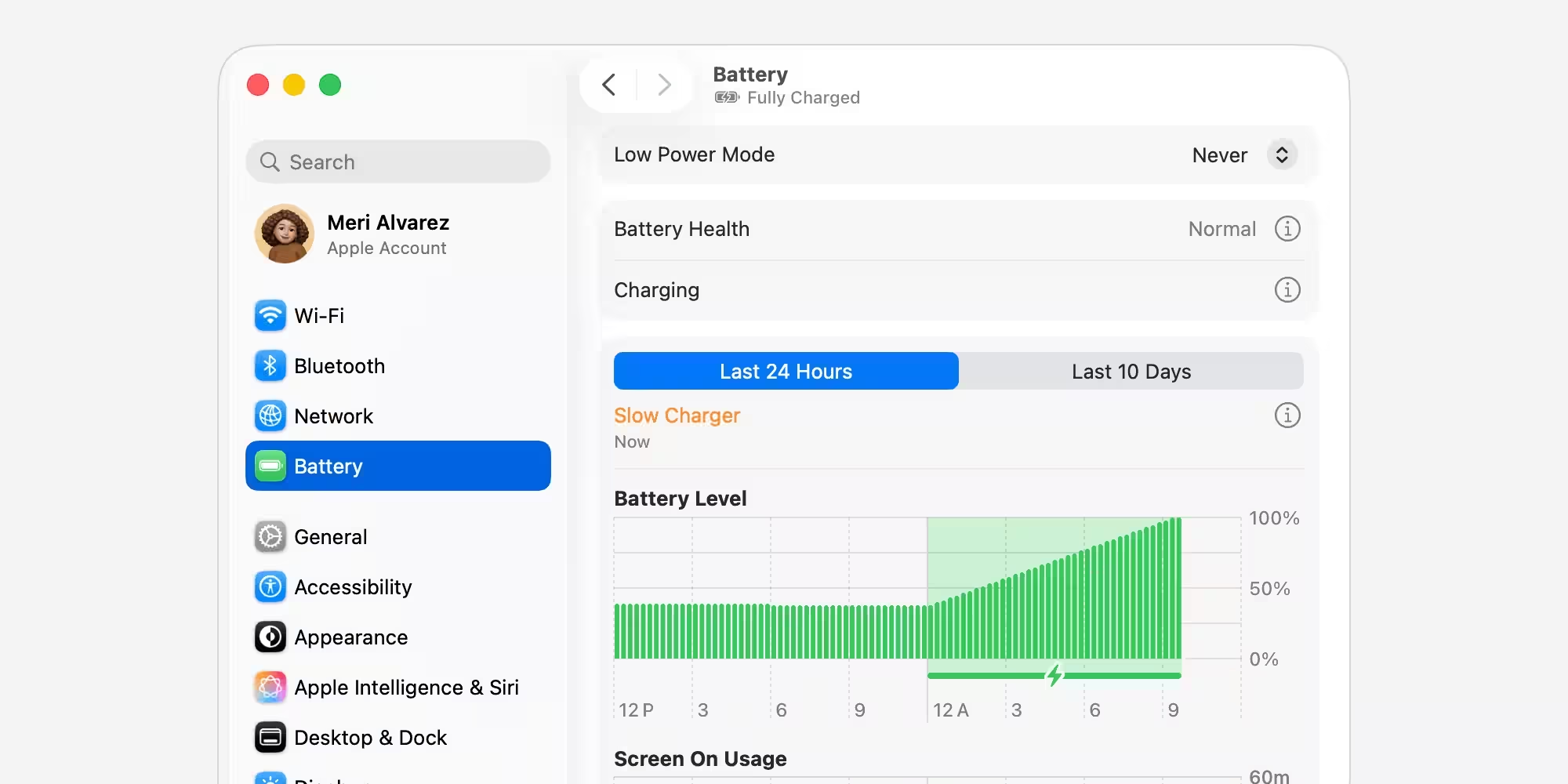
With USB-C charging now standard across many devices, power delivery varies significantly between chargers. Apple’s addition of the ”Slow Charger” alert reinforces the importance of using recommended wattage adapters to maintain better charging performance and battery health.
If you encounter the ”Slow Charger” message on your Mac, check your current power adapter and consider upgrading to one that meets your model’s requirements. These digital warnings help ensure your Mac runs longer and charges faster, even when relying on less powerful chargers away from home.