

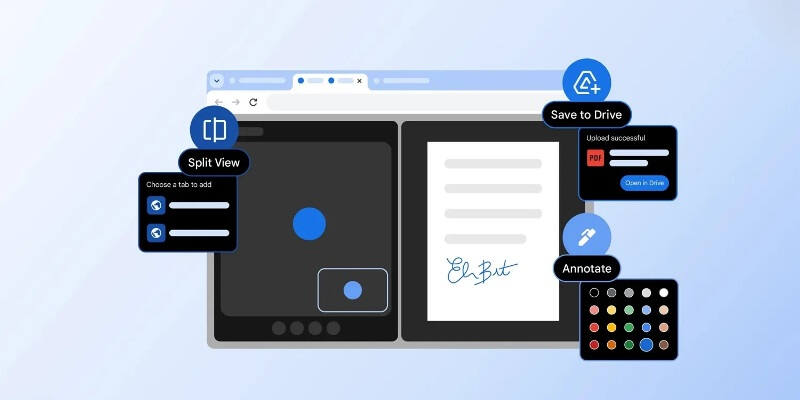
We all juggle too many tabs. Between video calls, reference documents and quick research, a single browser window can feel like a paper-thin control room. Google is taking a simple approach: keep the multitasking inside Chrome instead of forcing you to manage windows or reach for third-party tools.
With the upcoming Chrome 145, Google is adding three desktop features aimed squarely at that problem: a built-in split-screen for two tabs, basic PDF annotation tools, and a ”Save to Google Drive” button inside the PDF viewer.
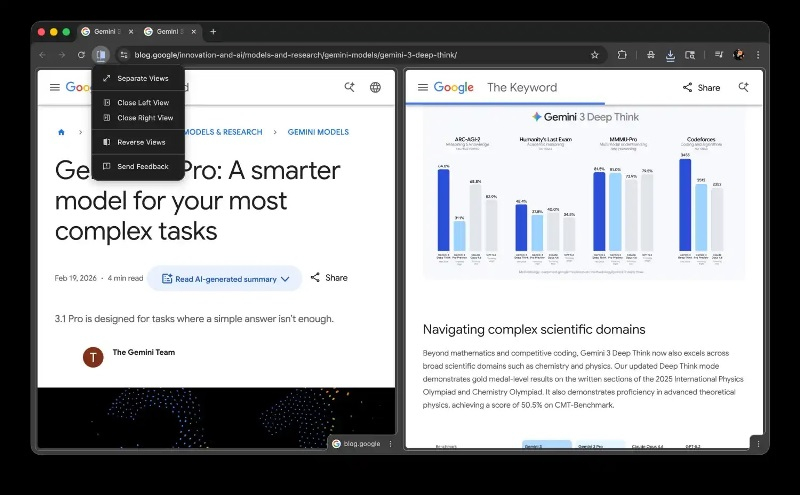
The split-screen mode is activated by right-clicking a link and choosing ”Open link in split window.” Chrome then opens a two‑panel interface below the address bar. An icon appears to the left of the address field with quick actions: ”Split”, ”Close”, and ”Swap”. You can drag the central divider to resize the panes, and the address bar updates depending on which side you’re interacting with. Use-cases are obvious: watch a video while taking notes, run a meeting on one side and a document on the other, or compare two pages without constantly switching tabs.
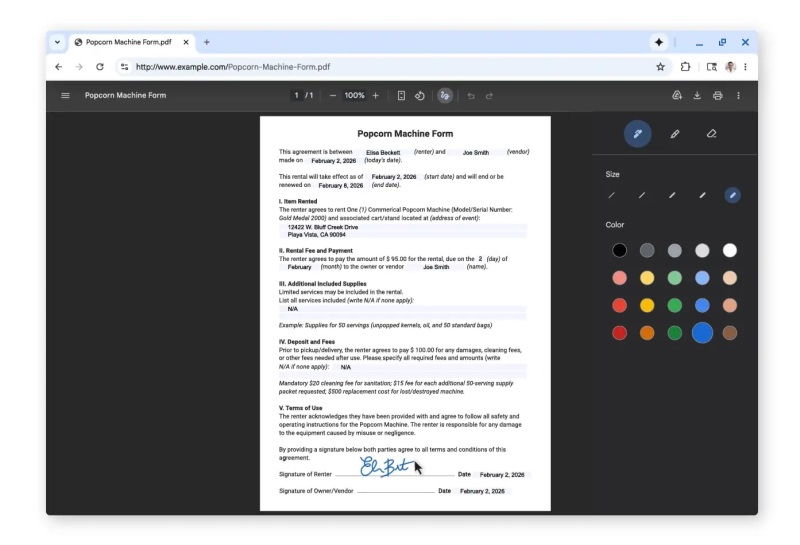
Chrome’s PDF viewer now supports annotations. You can select text and add notes via an icon in the top bar; a right-hand panel offers controls for text size and color. There’s also a new ”Save to Google Drive” button that lets you pick which account to upload to – files go into an automatically created ”Saved from Chrome” folder.
None of these moves are technically daring. But they matter because they shift common quick tasks back into the browser – where Google already controls the UI and the data flow. That matters for convenience, and for Google Drive’s engagement if users start saving more files straight from Chrome.
How this fits into the bigger picture
Browsers and extensions have been solving parts of this puzzle for years. Niche browsers such as Vivaldi have offered tab tiling for power users, and countless extensions have tried to fake a split view or save PDFs to cloud services. Operating systems provide window snapping (Windows Snap, macOS Split View), but those OS-level tools still force you to manage multiple windows and workspaces.
Built-in PDF annotation is nothing new in the app world – Adobe Reader, Apple Preview and many dedicated PDF apps already offer rich markup and collaboration. What Chrome is doing is shaving friction off small, frequent tasks: quick highlights, inline notes, and a one-click save to Drive. For many users that will be enough.
Who wins, who loses
Everyday users win. Fewer windows, fewer extensions to install, and an easier path to save and organize PDFs in the cloud. Google wins too: nudging files into Drive keeps them in Google’s ecosystem and under its storage umbrella.
On the flip side, extension makers and some standalone PDF tools may see a drop in casual usage. If Chrome covers the fast, frequent interactions, users will be less likely to install third-party utilities for the same tiny tasks. Privacy-conscious users and enterprises might also raise questions: saving a PDF to Drive uploads it to Google’s servers, and organizations that restrict cloud uploads will need to take note.
What’s missing
Google’s rollout is convenient, but there are clear omissions that power users will notice. There’s no sign yet of collaborative annotation (real-time shared notes inside the PDF), annotation sync across devices, or an obvious export/versioning workflow that keeps the original and the marked copy separate. Keyboard-first workflows, advanced annotation types (stamps, signatures, redaction), and integration with enterprise DLP policies also look like gaps for workplaces.
What to expect next
Expect adoption to be quiet but steady. Users who only occasionally mark up PDFs or juggle two tabs will find Chrome’s approach friction-free and will likely use it. That incremental usage is more valuable to Google than flashy launches: a few extra Drive uploads and slightly longer browser sessions are easier wins than a new product.
Competitors will respond – either by polishing their own in‑browser tools or by leaning into richer collaboration and privacy features that Chrome leaves out. If you care about heavier PDF workflows or workplace controls, you’ll still want dedicated apps. If you just want to stop Alt‑Tabbing so much, Chrome 145 will probably do the trick.