

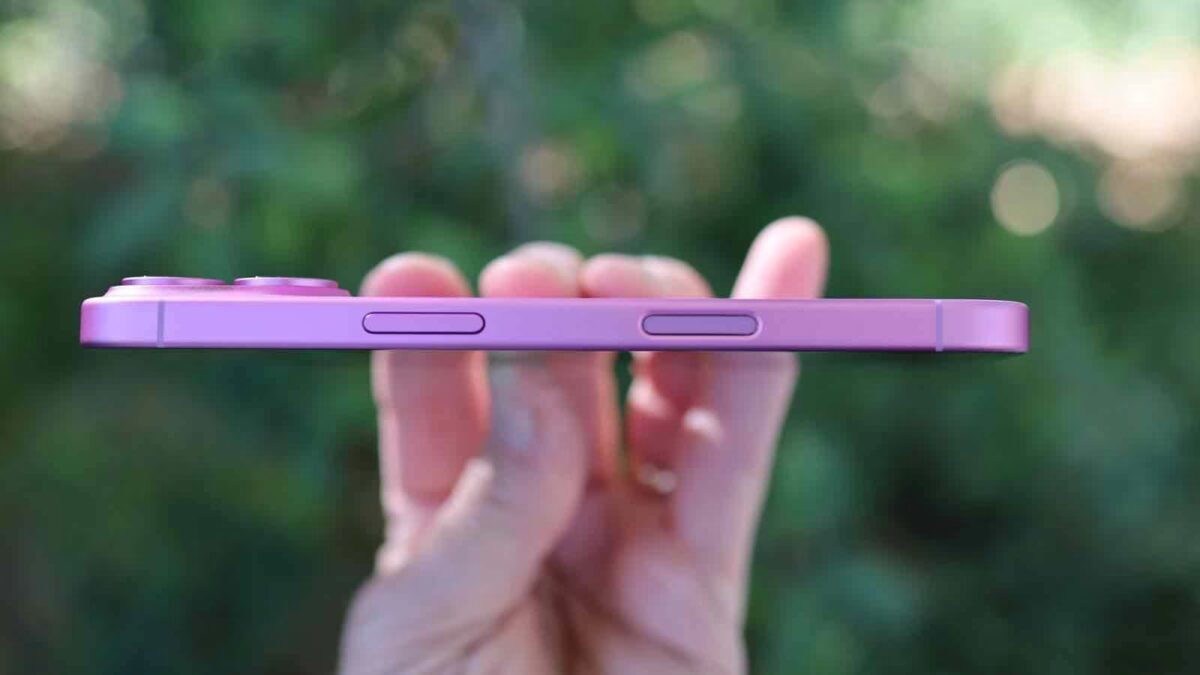
The Camera Control button on the iPhone 16 and 17 launches the Camera app by default-taking photos or starting video recording with a tap. But Apple lets you reassign this button’s function to open the QR Code Scanner or the Magnifier app instead, or even disable it entirely.
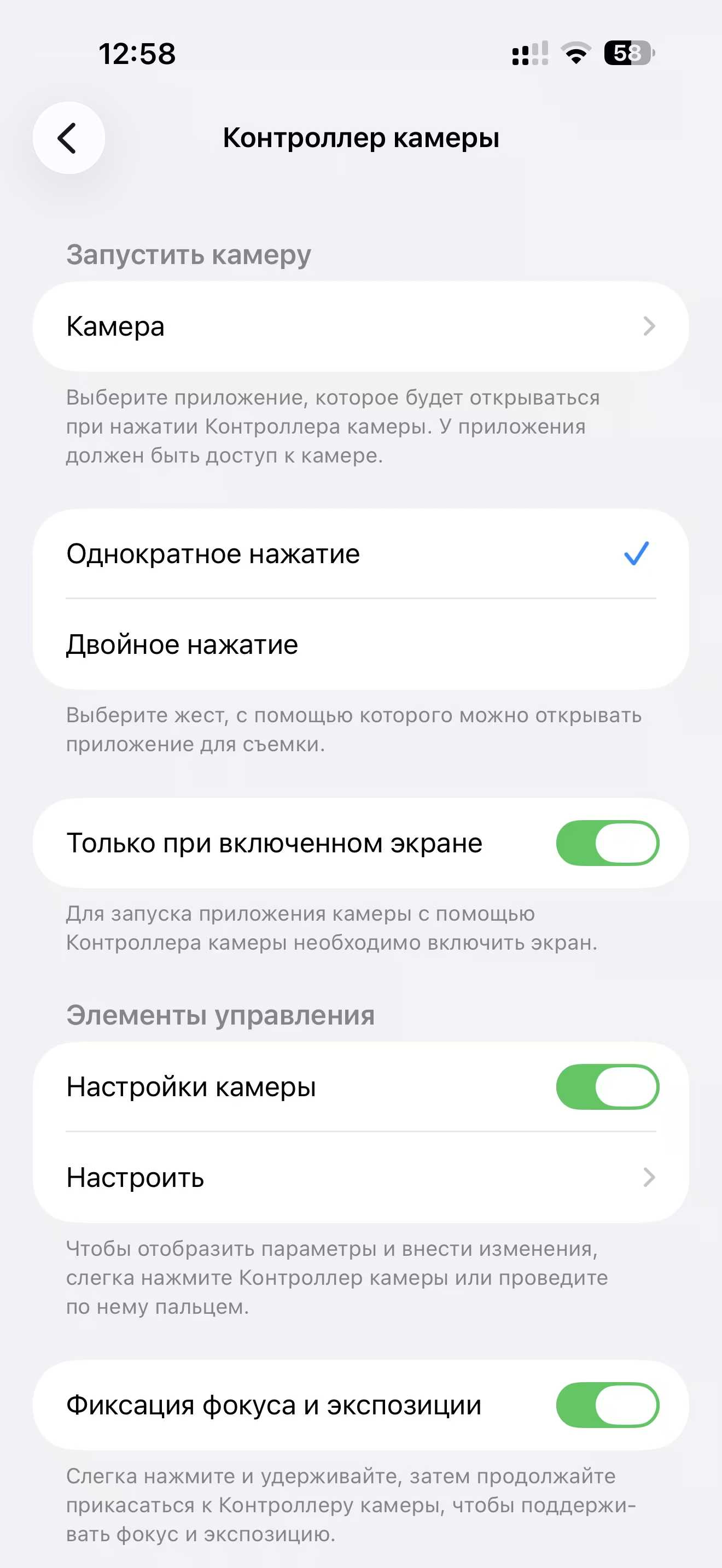
Single tap or double tap to launch camera
Out of the box, the Camera Control button activates the camera with a single press for instant access. If you find yourself accidentally triggering it-such as when pulling your phone from a pocket-you can switch it to require a double tap.
Go to Settings → Camera → Camera Controller → Tap Type and select Double Tap. This change significantly reduces accidental activations.
Wake phone or only when screen is on
The button can be set up to launch the camera even from the lock screen-no need to unlock with Face ID or a passcode. This enables faster capturing of fleeting moments.
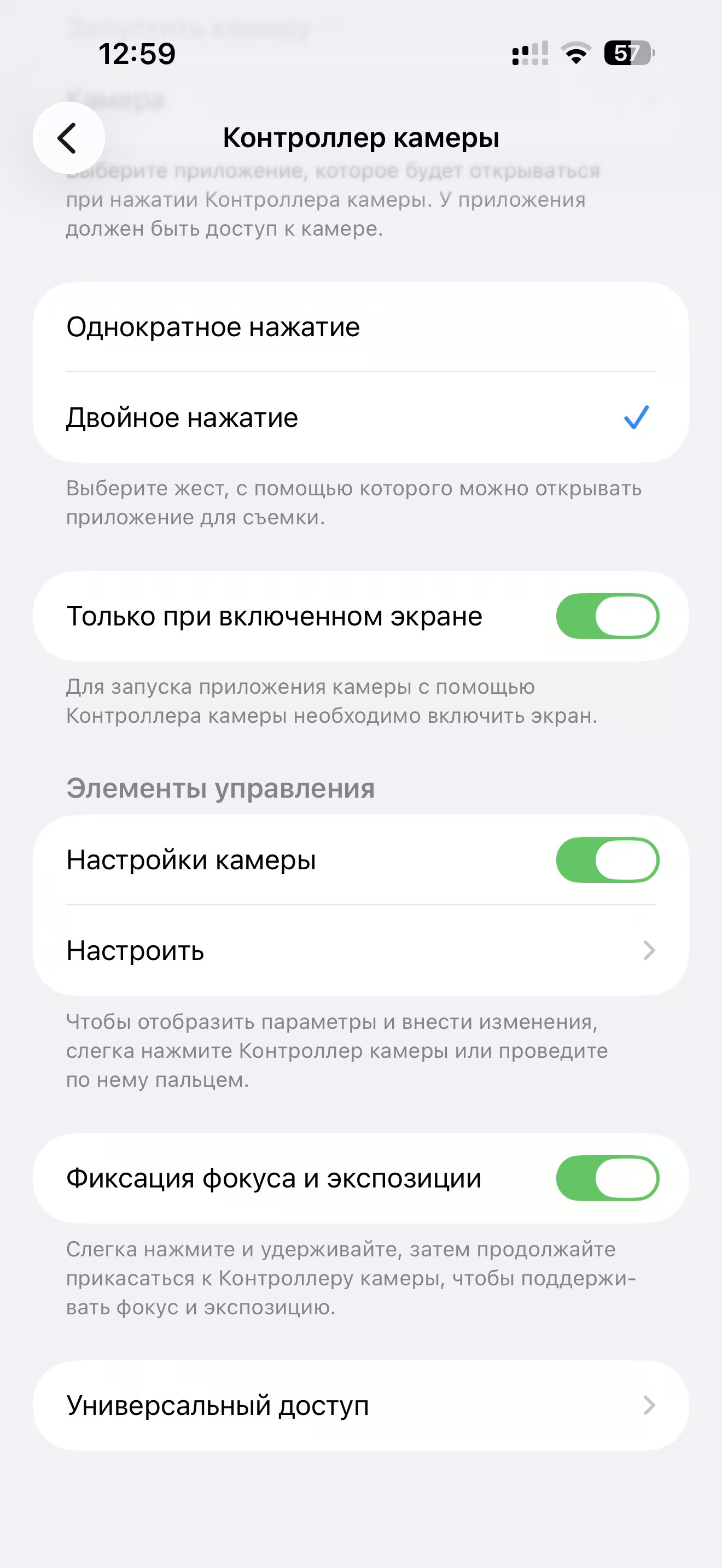
Find this under Settings → Camera → Camera Controller → Operating Mode. You can pick:
- Only when the screen is on – the button works solely if the display is active, which prevents unauthorized camera access without unlocking.
- From sleep mode – a single press wakes the phone and instantly opens the camera, bypassing Face ID.
If privacy concerns you, choose the first option so the camera won’t open unless the phone is unlocked.
Using the button’s touch sensor
The Camera Control button isn’t just a physical press-it also features a touch-sensitive strip. Swipe along it while shooting to adjust settings without touching the screen.
Adjust this under Settings → Camera → Camera Controller → Controls → Customize, choosing what your swipe controls:
- Zoom – smooth, tap-free zooming.
- Exposure – tweak the frame’s brightness.
- Depth – adjust background blur in Portrait mode.
- Photo style – switch among photographic filters.
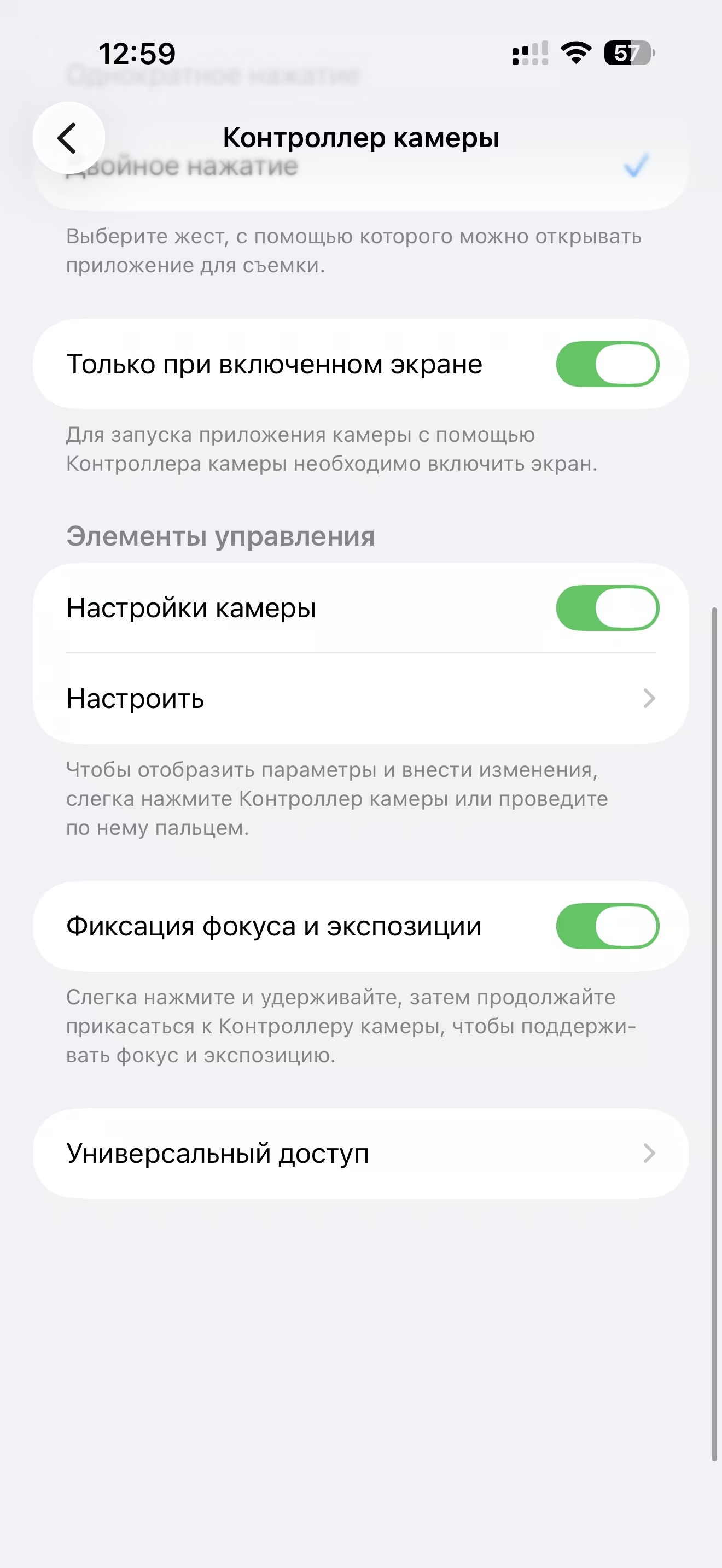
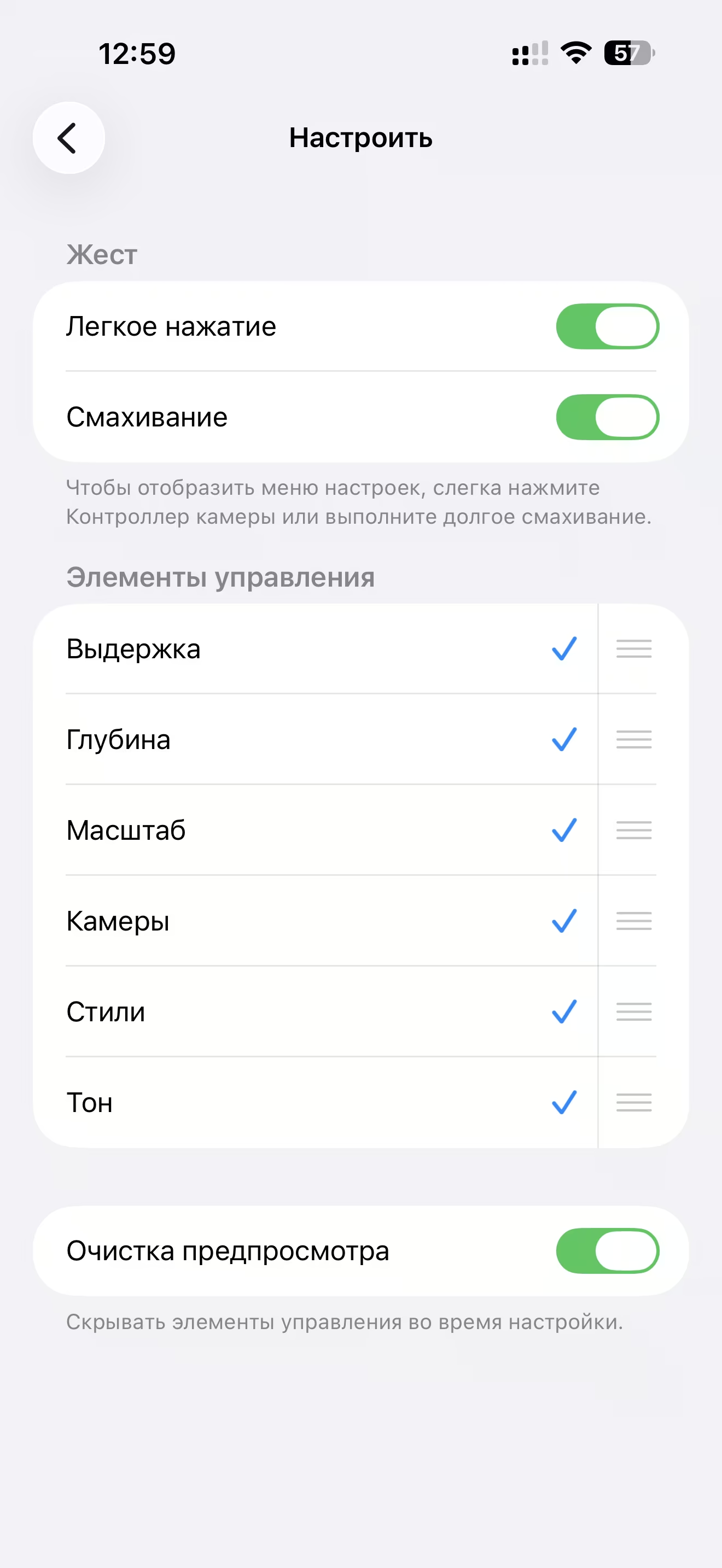
This menu also lets you enable gestures: double-tap the strip to cycle through controls, and swipe to quickly switch between options.
Another handy feature here is focus and exposure lock. Hold the button for a few seconds when shooting, and it locks these settings to prevent wandering during movement.
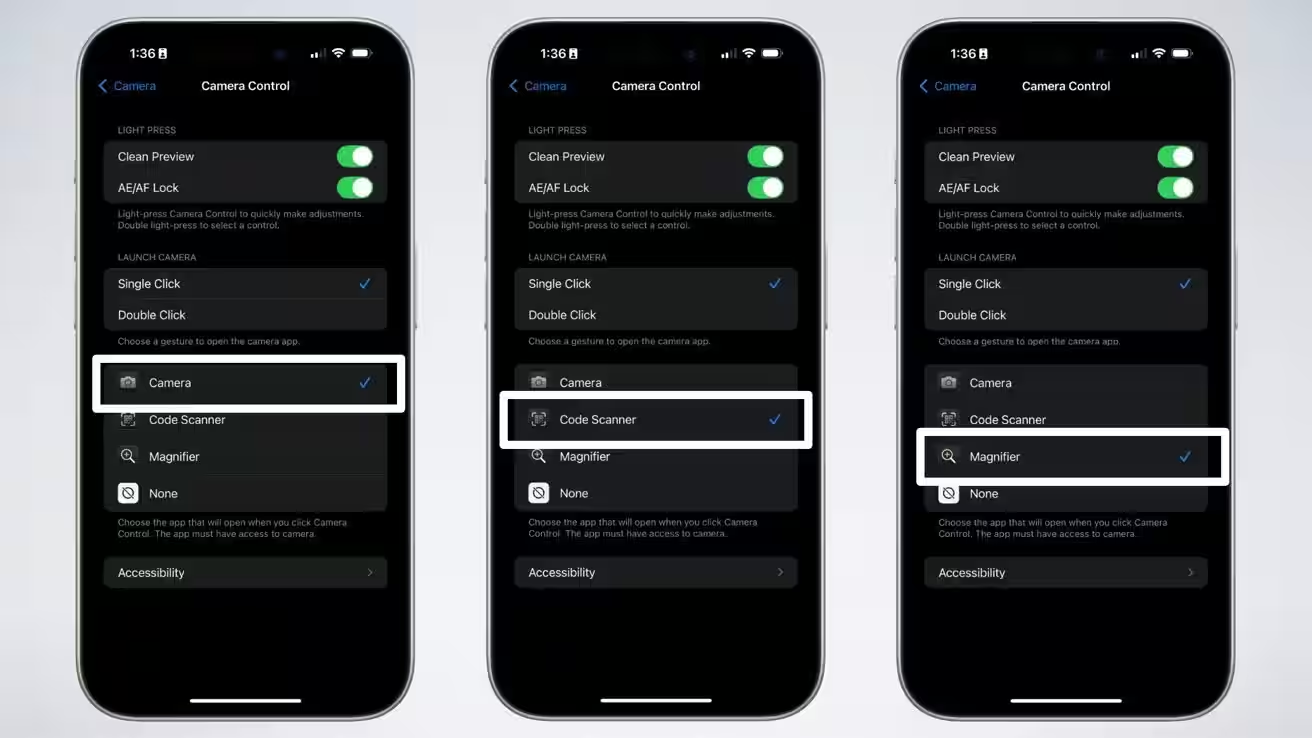
Assigning the QR code scanner
If scanning QR codes is part of your routine, you can swap the Camera Control button’s function to directly launch Apple’s built-in Code Scanner app.
- Open Settings.
- Scroll down to Camera.
- Tap Camera Control.
- Select Code Scanner.
Now a press opens the scanner immediately, automatically recognizing QR codes and showing embedded links or text without launching the full Camera app.
Assigning the Magnifier app
The Magnifier app helps you zoom in on small text or objects in low light. It’s preinstalled on every iPhone and can also be assigned to the Camera Control button.
- Go to Settings → Camera → Camera Control.
- Choose Magnifier.
The button will now open Magnifier, where you can pinch-zoom on screen to adjust magnification.
Disabling the Camera Control button
If you frequently trigger Camera Control by accident or prefer using volume buttons for photos, you can turn the button off completely.
- Open Settings.
- Go to Accessibility.
- Find the Physical and Motor section and select Camera Control.
- Toggle it to Off.
This menu also lets you adjust tap sensitivity if you decide to keep the button enabled.
Troubleshooting Camera Control button issues after iOS updates
After iOS updates, some users notice the Camera Control button stops responding or loses gesture support. This rarely indicates hardware failure-usually, settings reset to defaults.
First things to check:
Visit Settings → Camera → Camera Controller and verify your preferences. Updates often revert sensitivity and mode settings to factory defaults.
Also check Settings → Accessibility → Physical and Motor → Camera Control to make sure the button wasn’t accidentally disabled.
Other possible causes:
- Case interference – tight or thick cases pressing against the button, or protective inserts aligned with it, can disrupt the touch sensor. Try removing the case and retesting.
- Wet or gloved fingers – the touch strip reacts poorly to moisture or gloves, much like the touchscreen itself.
- Physical damage – if the phone took a drop, inspect the button for cracks or breaks. In this case, a repair visit is necessary.
If none of these solve the problem, try restarting your iPhone or resetting all settings via Settings → General → Transfer or Reset iPhone → Reset → Reset All Settings. This won’t erase your data but can clear configuration glitches.
Frequently asked questions
Which iPhones have the Camera Control button? It debuted with the iPhone 16 series (16, 16 Plus, 16 Pro, 16 Pro Max) and is included on all iPhone 17 models. Earlier iPhones like the iPhone 15 lack this button.
Can you assign third-party apps to the button? Not yet. Apple restricts the options to built-in Camera, Code Scanner, or Magnifier apps only.
Can you open the camera via the button without unlocking the phone? Yes-if you enable the ”From sleep mode” setting, one press wakes the iPhone and launches the camera immediately, skipping Face ID.
Unlike Android devices that often allow more comprehensive remapping of hardware buttons, Apple currently limits the Camera Control button’s reassignment to a small set of system apps, keeping the experience simple but less flexible.
Essentially, the Camera Control button adds a physical shortcut other manufacturers don’t typically offer. Samsung and Google Pixel phones rely mostly on volume button shortcuts and side gestures for camera access. Apple’s tactile button offers another interaction layer worth watching as it evolves in future iOS releases.
Going forward, watch whether Apple expands the Camera Control button’s functionality-offering support for third-party apps or more customizable gestures-as users balance convenience with accidental triggers and privacy. How much control Apple gives users will shape if this hardware feature becomes a staple or remains a niche convenience.