

World Backup Day is a useful reminder that the only truly safe device is the one that can fail without taking your life with it. For iPhone, iPad, and Mac users, Apple already provides the basic tools to back up Apple devices and avoid that disaster – but plenty of people still never turn them on, which is how ”I’ll do it later” becomes a very expensive policy.
The good news is that Apple’s backup options are simple enough that you do not need to become your family’s part-time IT department. The better news is that you can combine cloud and local backups, which is the difference between a minor inconvenience and a full-blown digital funeral when a phone disappears, a drive dies, or a house fire wipes out the only copy you had.
Back up iPhone and iPad with iCloud
The easiest route for most people is iCloud Backup. Apple still keeps the free tier at 5GB, so a paid iCloud+ plan is usually part of the deal if you want a real backup rather than a symbolic gesture. On iPhone or iPad, go to Settings, tap your name, then iCloud > iCloud Backup, turn on ”Back Up This iPhone,” and tap ”Back Up Now” if you want to start immediately.
While you are there, check the ”Saved to iCloud” section and make sure the important stuff is enabled too: photos, email, passwords, notes, messages, calendars, contacts, reminders, and the rest. If you have a generous data plan or unlimited mobile data, letting backups run over mobile data is safer than hoping you always remember to sit near Wi-Fi like a pilgrim waiting for a signal.
- Turn on iCloud Backup in Settings > your name > iCloud > iCloud Backup
- Use a paid iCloud+ plan if 5GB is not enough
- Check that key data categories are also saved to iCloud
- Consider mobile data backups if your plan allows it
Time Machine still makes Mac backups easy
For Macs, Time Machine remains the low-friction option Apple should probably brag about more often. Plug in a large enough external drive and macOS will usually ask whether you want to use it for backups; from there, Time Machine quietly creates versioned backups, which is the whole point when you need to recover a file you deleted yesterday and forgot to mourn until today.
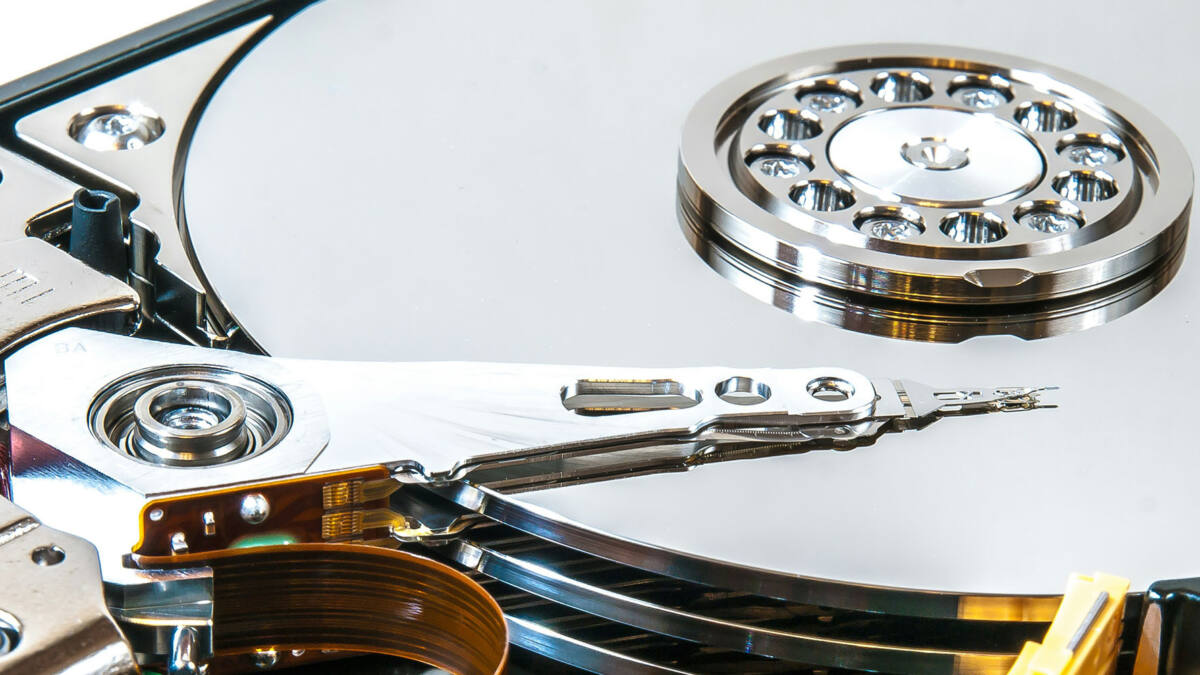
A larger drive means more history, and Apple’s own guidance has long pointed users toward plenty of spare capacity. A spinning hard drive is cheaper than an SSD, which makes it easier to buy more room for those incremental snapshots instead of burning money on speed you do not actually need for a backup disk sitting on your desk.
- Connect an external drive to start Time Machine
- Choose a drive at least twice as large as your Mac’s SSD
- Use a larger drive if you want more versions retained
- Multiple drives can be used and alternated automatically
Cloud plus local backup is the safer mix
The real trick is not choosing between cloud and local storage. It is refusing to trust one copy of anything important. A backup on the same desk as the Mac is great until the desk is gone, which is why remote storage matters as much as the backup itself.
That is also where services like Dropbox or iCloud for desktop and documents can earn their keep, especially for files you need access to when you are away from your Mac. Apple’s ecosystem already makes this pretty easy; the missing piece for most users is not technology, just the tiny burst of discipline required to switch it on.
Expect this advice to get more relevant, not less, as people keep their devices longer and store more of their lives on them. Phones get lost, drives fail, and backup complacency is still the most common data-loss feature no manufacturer advertises.