

RAR files remain a popular choice for sending work documents, storing photo archives, and bundling large software packs-but not all devices open them easily. Multivolume archives and password protection can complicate extraction. In 2026, opening RAR files has become easier, but there’s still no single ”open everything” button that works across all devices.
Here’s how to open RAR files on Windows, macOS, Android, iPhone, and Linux, including solutions for handling split archives, CRC errors, and suspicious content inside.
Why RAR files are not supported natively by all operating systems
RAR, short for Roshal Archive, was created by Russian developer Eugene Roshal in 1993, with WinRAR debuting in 1995. Unlike ZIP, which has always been an open standard, RAR is a proprietary format. This limits its native support across operating systems.
While most operating systems quickly integrated native ZIP support, RAR compatibility has lagged. Only WinRAR can officially create RAR files; other tools rely on separate extraction libraries. This is why OS vendors have generally avoided including full RAR support by default.
Despite this, RAR remains widely used because it offers efficient compression, multipart archive support, recovery records, and encryption. It’s particularly common for packaging large file collections into multiple volumes for easier sharing.
How to open RAR files on Windows, macOS, Android, iPhone, and Linux
Windows 11. The biggest recent change arrived with Windows 11 version 23H2. File Explorer now supports extracting standard RAR files using the libarchive library. Double-clicking a simple RAR lets you view and extract its contents through ”Extract All,” covering most basic needs.
This built-in support has limitations: it cannot create RAR files, struggles with multipart archives and password-protected files, and offers no repair options for damaged archives. Windows 10 does not have native RAR support and will not receive it.
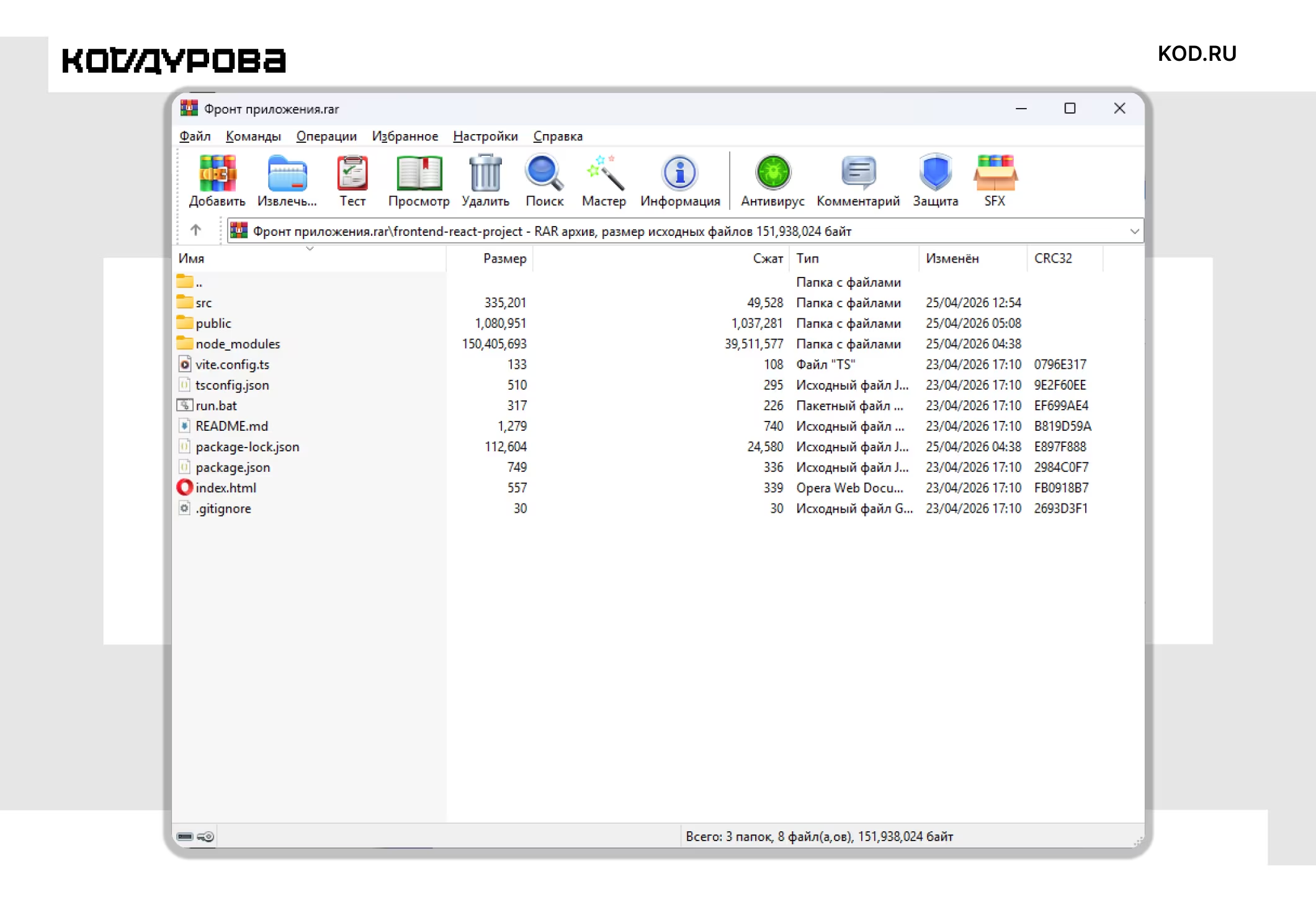
WinRAR. The official RAR license holder’s tool remains the go-to application for creating and fully managing RAR archives. It’s shareware-after the trial period ends, it continues to run with reminders. WinRAR supports password protection, multipart archives, integrity verification, and repair functions.
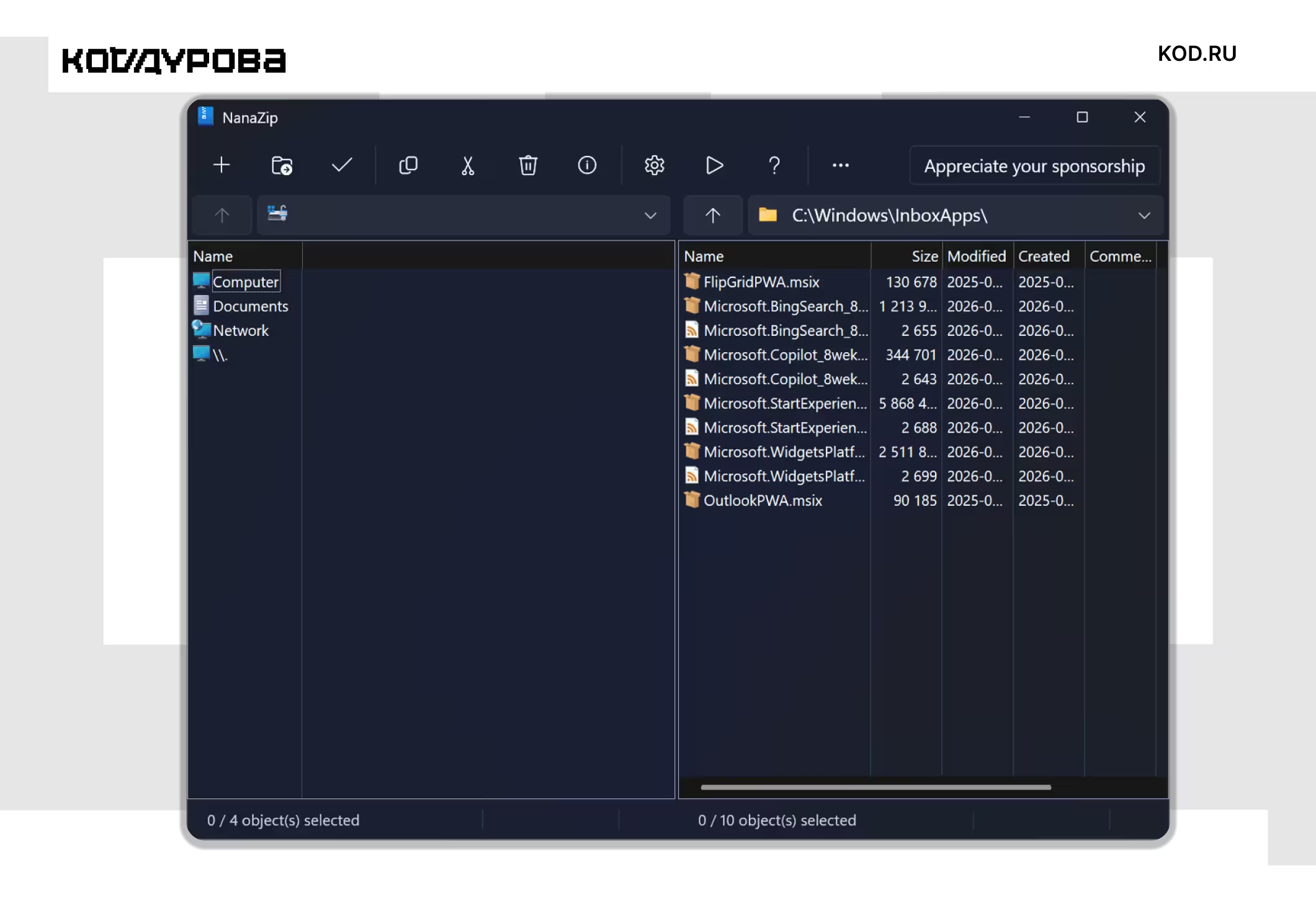
7-Zip and NanaZip. For extracting RAR files, these free tools are often sufficient. 7-Zip is open source, supports extraction of RAR and RAR5 formats, and can create 7z and ZIP archives-but cannot create RAR files. NanaZip uses 7-Zip’s engine, offering a polished Windows 11-friendly interface with dark mode and Microsoft Store installation.
- Windows 11 File Explorer: built-in extraction of standard RAR files only
- WinRAR: comprehensive RAR creation and extraction with advanced features
- 7-Zip: free open-source tool for RAR extraction; creates 7z and ZIP archives, not RAR
- NanaZip: 7-Zip core with a sleek Windows 11 interface
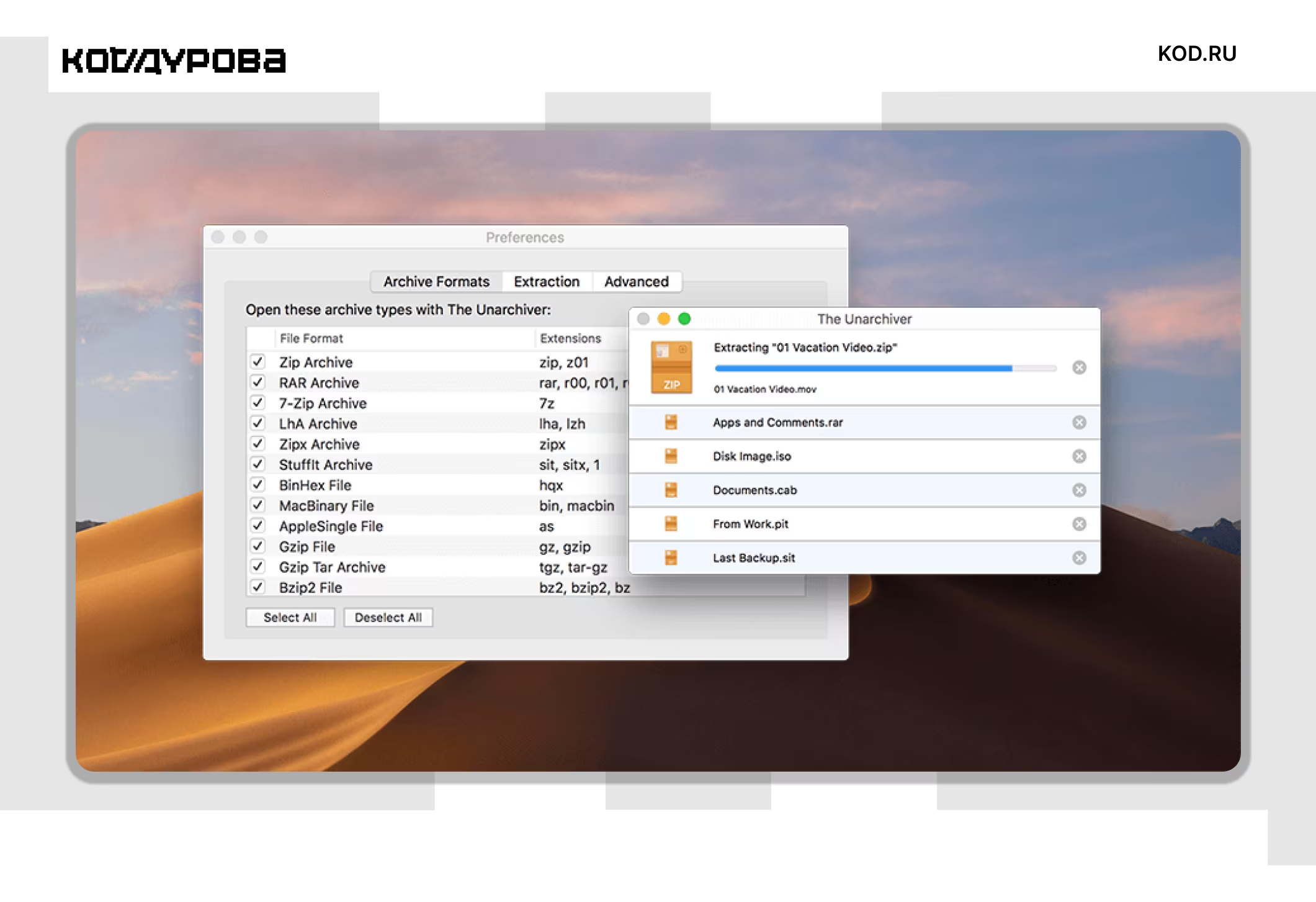
macOS. Apple’s built-in Archive Utility focuses on ZIP files and does not support RAR natively. The Unarchiver, available on the App Store, is the most popular extractor for RAR files: install it, then double-click your archive to unpack it. For added features, Keka supports RAR extraction and also creates archives in 7z, ZIP, and other formats.
Android. There is a wide selection of tools. The official RAR app from RARLAB supports single and multipart archives, password protection, and can create RARs on your device. ZArchiver is a popular alternative for managing various archive formats. File managers like Total Commander or Solid Explorer often include built-in extraction features as well.
iPhone and iPad. Apple’s Files app handles ZIP files natively but not RAR. Third-party apps such as iZip or Documents by Readdle are required. To extract, locate your archive, share it to one of these apps, and confirm extraction.
Linux. Terminal users can extract RAR files with the command unrar x archive.rar. If unrar is not installed, add it via your package manager (sudo apt install unrar on Debian/Ubuntu, or dnf install unrar on Fedora). Alternatively, the 7-Zip command 7z x archive.rar works for extraction.
If you prefer a graphical interface, GUI frontends like GNOME’s File Roller or KDE’s Ark provide user-friendly extraction but require unrar or p7zip to be installed under the hood.
How to handle multipart RAR archives, passwords, CRC errors, and malware risks
Multipart archives. Files named like archive.part1.rar, archive.part2.rar, and archive.part3.rar are parts of one large archive split into segments. Keep all parts in the same folder and open only part1.rar. The extractor will automatically use the remaining parts.
Missing any part usually prevents extraction or causes errors. This is a common source of ”corrupt archive” messages when the issue is actually an incomplete download.
Password-protected archives. You must have the correct password to decrypt RAR files with encryption. Modern RAR encryption cannot be bypassed easily. If you received a protected archive, ask the sender for the password. Online sources often provide passwords alongside download links.
CRC errors. CRC checks verify data integrity. Receiving a CRC error during extraction usually means the file was corrupted during download or copying, for example to USB drives or memory cards. The best first step is to re-download the archive.
If issues persist, check your storage device’s health. WinRAR offers a repair function that can sometimes salvage parts of a damaged archive, potentially recovering important files even if the archive is partially corrupted.
Malware risks in RAR files. RAR archives are common carriers for malware, especially those claiming to contain ”cracks,” ”keygens,” or ”cheats.” These often conceal executable files such as .exe, .bat, .scr, or .js that can run malicious code.
Never run files directly from inside an archive. Always extract the contents to a separate folder, scan with antivirus software, and then open the files. Be cautious of unexpected password-protected archives, as passwords may be used to bypass email filters rather than to protect privacy.
To sum up: on Windows 11, you can open simple RAR files directly in File Explorer. On macOS, use The Unarchiver or Keka. Android users should try the official RAR app or ZArchiver. iPhone owners can use iZip or Documents by Readdle, while Linux users will find unrar the most straightforward option. For multipart, encrypted, or damaged archives, a full-featured extractor is necessary. RAR in 2026 is more accessible but still requires understanding its specific quirks.